
HoHo Hub Discord: How to Join on PC and Mobile

Joining the HoHo Hub Discord community is usually simple, but the steps differ slightly on computers and phones. Desktop users can search through Discord’s Discover section, while mobile users may find it easier to open a trusted invite link.
The server may appear as HoHo Hub or HoHo Community. This guide covers both joining methods, onboarding, invite errors, and basic safety checks.
What Is the HoHo Hub Discord Server?
HoHo Hub Discord is a community where members can follow announcements, read updates, ask questions, and talk with other users. Its exact channel list may change, but you may find areas for rules, support, updates, general discussion, and troubleshooting.
Some channels may stay hidden until you accept the rules, choose roles, or complete onboarding. Server names and invite links can also change, so check that you are joining the intended community rather than a copy.
How to Join HoHo Hub Discord on PC
1. Open Discord
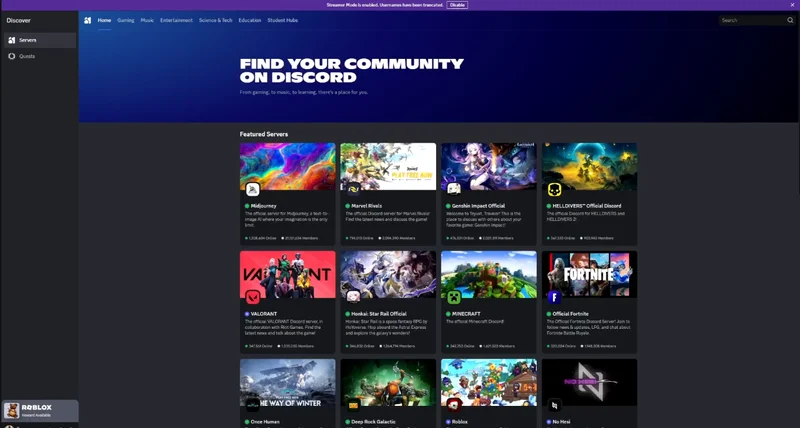
Launch the Discord desktop app and sign in to your account.
2. Open Discover
Find the compass-shaped Discover icon near the bottom of the server sidebar. Discord’s Server Discovery guide explains how public community search works.
3. Search for HoHo Hub
Enter HoHo Hub in the search box. If no suitable result appears, search for HoHo Community, as this name is also used in the tutorials.

4. Check the Server Preview
Open the relevant result and review its name, description, visible channels, and activity. This helps you avoid joining an unrelated server with a similar name.
5. Join the Server
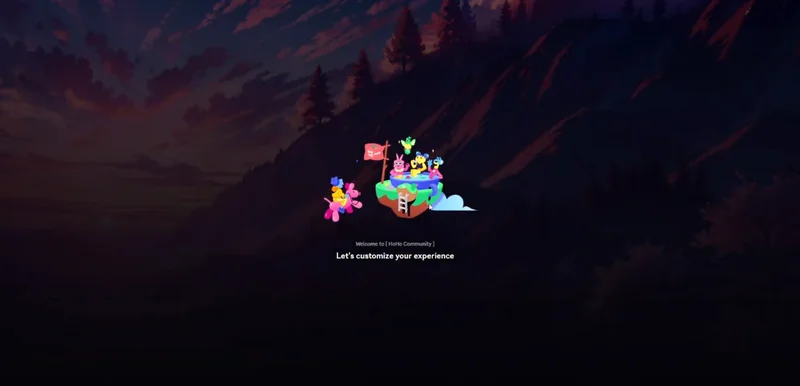
Click Join or Join HoHo Community. Discord may then ask you to accept rules, select interests, or complete verification.
How to Join HoHo Hub Discord on Mobile
The Discover feature may not be easy to access in every mobile layout, so a trusted invite link is often the quickest option.
Open the invitation in Chrome, Safari, or another browser. Tap Accept Invite, allow the page to open the Discord app, and confirm that you are signed into the correct account.
You can also paste the invite manually. Open Discord, choose Add a Server, select Join a Server, and enter the link. Discord explains this process in its official mobile guide.
Avoid links from unknown comments, messages, or websites. Check that the invitation opens through Discord and shows the server you expected.
Join Through a Web Browser
You can use a browser on PC or mobile. Open the trusted invitation and click Accept Invite. The browser may ask permission to launch the Discord app.
Discord’s official joining-a-server guide also explains how to paste an invite manually.
Do not enter your Discord password on an unfamiliar third-party page. A normal invitation should open Discord’s website or application.
Complete Server Onboarding
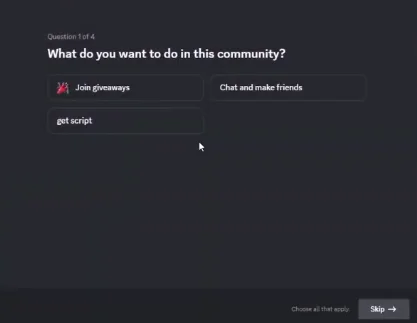
After joining, look for a welcome screen or Start Onboarding button. You may need to accept the rules, select interests, choose roles, complete a captcha, or adjust notifications.
Finish every required step before assuming channels are missing. Then check the rules and announcements first, as these usually contain the most important information for new members.
What Can You Find in the Server?
Depending on its current layout, the server may contain announcements, update posts, help channels, frequently asked questions, and general conversations.
Information from administrators and designated announcement channels is usually more reliable than claims made by ordinary members. Channel names, roles, and access requirements may change over time.
HoHo Hub Discord Invite Not Working
- Expired invite: Find a newer link from a trusted source.
- Wrong Discord account: Check which account is signed in, then reopen the invitation.
- Invalid invite: The link may have expired, reached its usage limit, or been removed. Discord lists common causes in its Invalid Invite Links guide.
- Hidden channels: Accept the rules, complete onboarding, and select any required roles.
- Verification problem: Follow the instructions in the verification channel. You may also need to verify your email or phone number.
How to Avoid Fake Discord Links
Fake invitations and phishing messages can put your account at risk. Confirm that the page opens on Discord and displays the community you intended to join.
Never share your password, backup codes, authentication code, or account token. Be careful with unexpected messages offering downloads, rewards, or special access. Discord’s phishing safety guide covers common warning signs.
Even inside a genuine server, individual members may still send unsafe links. Check moderator posts and official announcements before trusting important instructions.
Frequently Asked Questions
Open Discord, select Discover, search for HoHo Hub or HoHo Community, open the relevant server, and click Join.
Yes. Open a trusted invite in your browser or paste it into Discord through Add a Server > Join a Server.
You may need to accept the rules, complete onboarding, verify your account, or select a role.
The tutorials provided for this article use both names, so try searching for both.
No. Use a trusted source, confirm the link opens through Discord, and never share sensitive login information.
Conclusion
PC users can usually join HoHo Hub Discord through Discover, while mobile users may prefer a trusted direct invitation. Search for both HoHo Hub and HoHo Community, complete onboarding, and read the rules.
If an invite fails, find a newer trusted link instead of entering your account details on an unfamiliar website.